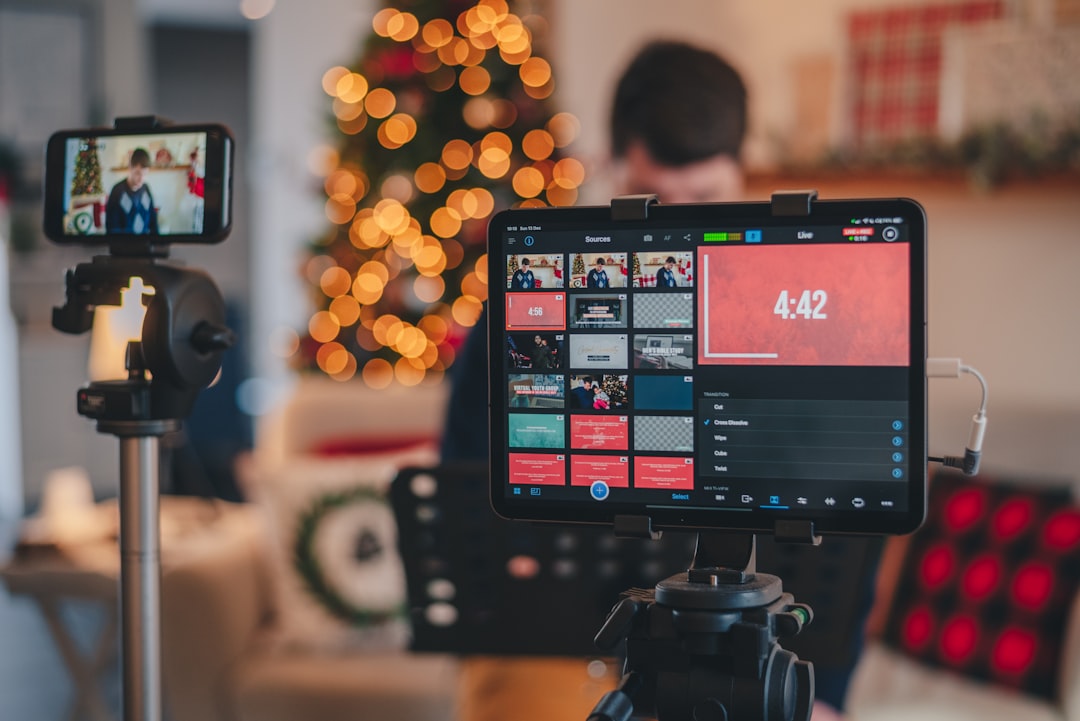
Multistreaming can expand a live show beyond one platform, but the right tool depends on more than the number of destinations it supports. This guide compares browser-based and software-driven workflows for streaming to YouTube, Twitch, and TikTok at once, with practical criteria for chat, encoding, recording, monetization, team access, and reliability.
Overview
Multistreaming means sending one live production to several platforms simultaneously. A creator might broadcast a discussion to YouTube Live and Twitch while also adapting the presentation for TikTok Live. The production can originate in streaming software on a computer, in a browser-based studio, or from a hardware encoder. A multistreaming service then distributes the feed to the selected destinations.
The appeal is straightforward: one show can reach audiences with different viewing habits without requiring a separate production for every platform. The trade-off is operational complexity. Each destination may have different aspect-ratio preferences, account requirements, chat behavior, moderation tools, discovery systems, and monetization rules. A tool that is convenient for sending one landscape feed everywhere may be less suitable when TikTok requires a vertical layout or when a team needs separate moderation controls.
There are two broad approaches:
- Browser-based streaming tools: These provide a web studio for scenes, guests, branding, and destinations. They are often easier to start with because the creator does not need to configure a local encoder.
- Desktop streaming software: Applications such as OBS Studio provide detailed control over scenes, sources, audio routing, encoding, and local recording. A separate multistreaming service or integration may handle distribution.
Neither approach is automatically the best live streaming platform for every creator. The important question is whether the workflow matches the show. A solo creator with a webcam and two guests may value simplicity, while a gaming channel, music performer, or publisher may need precise scene control and dependable local recording.
How to compare options
Start by describing the production you actually run, rather than comparing feature lists in isolation. Write down your destinations, content format, expected duration, number of presenters, and whether the show must be recorded for later editing. Then evaluate each tool against the following criteria.
Destination support and account connection
Confirm that the service supports the specific YouTube, Twitch, and TikTok account types you use, along with the publishing method available to you. Platform support can depend on region, account eligibility, vertical or landscape format, and whether the connection is an official integration or a custom stream-key workflow. Check the provider's current documentation before committing to a paid plan.
Distribution model
Some workflows send one feed from your computer to a relay service, which then forwards it to multiple platforms. This can reduce the upload burden on your connection, but it introduces a dependency on the relay provider. Other workflows send separate outputs from local software. That can offer more control, but it may require greater upload capacity and more careful encoder configuration.
Production requirements
List the sources you need: cameras, microphones, screen capture, guests, slides, videos, alerts, or music. Browser studios can be efficient for camera-led shows and interviews. Desktop software is generally more flexible when you need complex scene changes, custom audio routing, transitions, or a dedicated vertical canvas. Read the live streaming setup checklist before testing your workflow.
Audience and moderation workflow
Ask whether chats from multiple destinations can be viewed in one panel, whether replies identify the originating platform, and whether moderators can access the controls they need. Aggregated chat is useful, but it should not replace native moderation checks. A team should test bans, slow mode, blocked words, comments, and alerts separately on each platform.
Recording and repurposing
Look for a recording option that matches your editing workflow. A clean local master is often more useful than a platform archive because it can be edited into clips, highlights, captions, or a podcast version. Confirm the recording resolution, separate audio-track support, storage limits, and whether the file remains available after the stream. For a broader repurposing workflow, see how to turn live streams into social clips.
Limits, pricing, and team access
Do not compare plans only by monthly price. Record the number of destinations, permitted stream hours, output quality, recording storage, guest seats, simultaneous events, branding controls, and customer support included in each tier. Also check whether a plan limits the number of viewers, destinations, or team members. These inputs change regularly, so treat any comparison table as a snapshot rather than a permanent fact.
Feature-by-feature breakdown
| Feature | Browser-based workflow | Software-based workflow | What to test |
|---|---|---|---|
| Setup time | Usually faster for camera, microphone, guests, and basic scenes | Requires installation, source configuration, and encoder testing | How quickly can you rebuild the show after a failed connection? |
| Scene control | Good for prepared layouts and straightforward shows | More granular control over scenes, sources, transitions, and audio | Can you switch layouts without exposing an unintended source? |
| Encoding | May be handled partly or entirely by the service | You configure resolution, frame rate, bitrate, codec, and keyframe settings | Does the computer and upload connection remain stable for the full show? |
| Chat aggregation | Often central to the studio experience | May require an integration, dock, plugin, or separate dashboard | Can presenters and moderators identify each platform clearly? |
| Vertical output | May offer a simple vertical layout or separate format | Can be highly flexible, but may require a second canvas or output workflow | Does the vertical version preserve readable text and useful framing? |
| Recording | Convenient cloud recording may be available, subject to storage limits | Local recording offers more control over files and audio tracks | Is there a clean master suitable for editing and backup? |
| Monetization | Convenient distribution does not guarantee identical monetization features | Same platform-specific restrictions still apply | Can you legally and technically use subscriptions, memberships, gifts, or sponsorships on each destination? |
Encoding deserves special attention. If the distribution service receives one feed and handles the rest, your upload requirement may be simpler than sending separate feeds yourself. However, the final quality still depends on the source resolution, frame rate, bitrate, audio levels, and each platform's accepted settings. Test with a private or unlisted event where available, and consult the bitrate and resolution guide before a public broadcast.
Monetization also remains platform-specific. A multistreaming tool can distribute content, but it cannot make one platform's subscriptions, gifts, advertising, memberships, or commerce features available on another. Avoid promising identical calls to action everywhere. Instead, prepare a short spoken explanation and platform-specific pinned messages where appropriate. The creator monetization playbook covers the broader revenue planning process.
Best fit by scenario
Solo creator with a simple camera-led show
A browser-based studio is usually the most practical starting point when the show uses one or two cameras, a microphone, prepared graphics, and occasional guests. Fewer local settings can make rehearsals easier. Choose a service that lets you save layouts, control branding, and download a usable recording.
Gaming or screen-heavy creator
Desktop software is often a better fit when the production depends on game capture, multiple scenes, alerts, hotkeys, or detailed audio routing. Pair it with a distribution method that does not force you to rebuild the entire scene structure. Test CPU, GPU, and upload performance during a full-length rehearsal.
Podcast, interview, or publisher team
A browser-based workflow can reduce technical friction for remote guests, while a team should prioritize role-based access, moderator controls, reusable branding, and dependable recordings. Decide who starts the event, who watches chat, who handles technical issues, and who owns the recorded files.
Music or performance stream
Prioritize audio monitoring, low-latency communication, backup recording, and rights management. Check how the tool handles microphone and instrument sources, whether it preserves a clean audio track, and how platform-specific music policies affect the planned repertoire. A polished video feed cannot compensate for clipping, latency, or an unreliable monitor mix.
Creator testing several audiences
Multistreaming is useful when you are comparing audience response across platforms, but measure more than total viewers. Track average watch time, chat participation, follows or subscribers, returning viewers, clip performance, and the effort required to moderate each destination. The Twitch growth guide can help place platform-specific growth tactics in context.
When to revisit
Revisit your multistreaming setup whenever a platform changes its live eligibility, format, account connection, monetization, or moderation requirements. Review it when a tool changes pricing, destination limits, recording storage, guest capacity, branding, or team permissions. New integrations can also change the balance between a browser-based studio and a desktop workflow.
Use a simple quarterly review, or review sooner after a failed broadcast:
- Confirm that every destination still connects and publishes in the intended format.
- Check current plan limits, storage, simultaneous-event rules, and destination availability.
- Run a private test with the actual camera, microphone, scenes, guests, and chat workflow.
- Inspect the recording for dropped frames, audio drift, unreadable text, and platform-specific cropping.
- Compare audience and production metrics, not just concurrent viewers.
- Document a fallback: a single-platform stream, a local recording, or a prepared announcement if distribution fails.
The best multistreaming software is the one your team can operate reliably and your audience can understand. Start with two destinations, build a repeatable pre-stream checklist, and add complexity only after the core show is stable. That approach makes it easier to change tools when platform policies, pricing, or audience priorities change.